
Morph is the closest thing PowerPoint has to a magic button. Put the same object on two slides, change where it sits or how big it is, apply Morph, and PowerPoint animates the change for you. No motion paths, no animation pane, no timing headaches.
This guide shows you exactly how to set it up, which versions support it, and the small tricks that make Morph look intentional instead of messy.
- Morph animates objects that exist on two neighbouring slides. Duplicate the slide, then change it.
- Create Morph in Microsoft 365, PowerPoint 2019 or newer, or PowerPoint for the web.
- Name two objects with the same !!name to force them to morph into each other.
In this guide
- What the Morph transition actually does
- Which versions of PowerPoint support Morph
- How to create a Morph transition in 5 steps
- Objects, Words or Characters: the Effect Options
- The !! trick: force two different objects to morph
- 7 Morph ideas that look great in a pitch deck
- Common Morph problems and how to fix them
- The shortcut: start from a Morph-ready template
- FAQ
01What the Morph transition actually does
Morph compares two slides that sit next to each other. When it finds an object on both slides (the same shape, picture, text box or word), it smoothly animates that object from its old state to its new one: position, size, rotation, color and even shape.
Objects that only exist on the first slide fade out. Objects that only exist on the second slide fade in. That's it. The whole effect comes from how you design the two slides, not from animation settings.
02Which versions of PowerPoint support Morph
| Version | Create Morph | Play Morph |
|---|---|---|
| PowerPoint for Microsoft 365 (Windows and Mac) | Yes | Yes |
| PowerPoint 2019, 2021 and 2024 | Yes | Yes |
| PowerPoint for the web | Yes* | Yes |
| PowerPoint 2016 | No | Yes |
| PowerPoint 2013 and older | No | Fade instead |
*In PowerPoint for the web, Microsoft notes that Morph is available for files stored in OneDrive for work or school or SharePoint in Microsoft 365.
If you send a Morph deck to someone on an older version, nothing breaks. They just see a simpler transition.
03How to create a Morph transition in 5 steps
- Design your first slide. Place the objects you want to move: a photo, a shape, a big number, a title.
- Duplicate the slide. Right-click the slide thumbnail and choose Duplicate Slide. Duplicating is the key step, because it guarantees PowerPoint sees the objects as the same ones.
- Change the second slide. Move, resize, rotate or recolor the objects. Add new text or remove what you don't need.
- Apply Morph to the second slide. Select the second slide, open the Transitions tab and click Morph. The transition always goes on the slide you are moving to.
- Preview and adjust the timing. Click Preview. Most Morph transitions feel best between 0.8 and 1.5 seconds; change it in the Duration box.
04Objects, Words or Characters: the Effect Options
With Morph selected, open Effect Options on the Transitions tab. You get three modes:
- Objects (default): shapes, pictures and text boxes morph as whole objects.
- Words: matching words move to their new position. Great for rewording a headline or turning a list into a sentence.
- Characters: individual letters slide into place. Use it for short words or logo-style titles, because long text gets busy fast.
05The !! trick: force two different objects to morph
Sometimes PowerPoint pairs the wrong objects, or you want a square on slide 1 to turn into a photo frame on slide 2. Microsoft's answer is a naming rule: start an object's name with two exclamation marks, and give the same name to the two objects you want to match.
- Open the Selection Pane (Home > Arrange > Selection Pane, or Alt+F10 on Windows).
- Double-click the object's name on slide 1 and rename it, for example
!!hero. - Do the same for the target object on slide 2, using exactly the same name.
Now Morph treats them as one object, even if they started as different shapes. Keep each !!name unique on a slide so PowerPoint knows which pair you mean.
067 Morph ideas that look great in a pitch deck
- Zoom into a detail: scale up one part of a screenshot or chart to make the audience look where you want.
- Agenda that follows you: keep the agenda on every section divider and slide a highlight to the current section.
- Big number reveal: start with a small stat in a grid, then morph it to fill the slide.
- Photo to card: a full-screen photo shrinks into a card next to your text.
- Timeline scroll: place a long timeline wider than the slide and move it left on each slide.
- Team spotlight: enlarge one portrait while the others shrink to the side.
- Product rotation: rotate a device mockup or 3D shape slightly between slides for a premium feel.

07Common Morph problems and how to fix them
The objects fade instead of moving
PowerPoint didn't recognize them as the same object. This happens when you copy-paste from another slide or rebuild a shape. Duplicate the slide instead, or use the !! naming trick.
Things fly in from the wrong place
Two similar objects swapped partners. Rename them with unique !! names so each one has a clear match.
Text looks jumpy
Switch Effect Options to Words, keep the font and size the same where you can, and give the transition a little more time.
It works on your laptop but not on the venue PC
The venue may be running an older PowerPoint. Ask in advance, or bring your laptop. Using fonts that ship with Office also avoids layout surprises.
08The shortcut: start from a Morph-ready template
Morph looks best when the whole deck is designed around it: consistent positions, shapes that repeat across slides, and layouts that hand off to each other. That's how every MEGGYSTUDIO template is built. All 50 slides already have Morph applied, and they use Office fonts so nothing shifts on another PC.
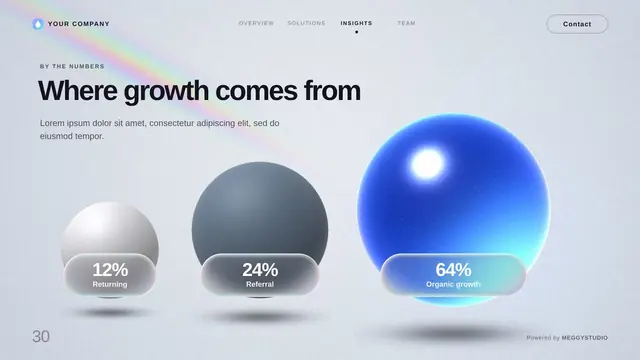

Every MEGGYSTUDIO deck has 50 layouts with Morph set up and Office fonts only. Try the free 5-slide sample first.
09FAQ
Which PowerPoint versions support Morph?
You can create Morph transitions in PowerPoint for Microsoft 365, PowerPoint 2019 and newer, and PowerPoint for the web. PowerPoint 2016 can play Morph but not create it, and PowerPoint 2013 shows a Fade instead.
Why is my Morph transition not working?
Usually the two slides don't share matching objects. Duplicate the slide first, then change size, position or color on the copy. If PowerPoint still pairs the wrong objects, rename both with the same name starting with !! in the Selection Pane.
Can Morph animate text?
Yes. In Transitions, open Effect Options and choose Words or Characters. PowerPoint then morphs matching words or letters between the two slides.
Written by MEGGYSTUDIOWe design 50-slide PowerPoint templates with Morph built in.